The data provided by the platform can be categorized into two types: conventional data and journal data.
(1) Standard Data Download Instructions.
(2) Journal Data Download Instructions.
Conventional data sharing types fall into two categories: open download and application-based download. As the names suggest, the former allows direct download without review, while the latter requires approval through a two-tier review process involving both administrators and data contributors before download access is granted.
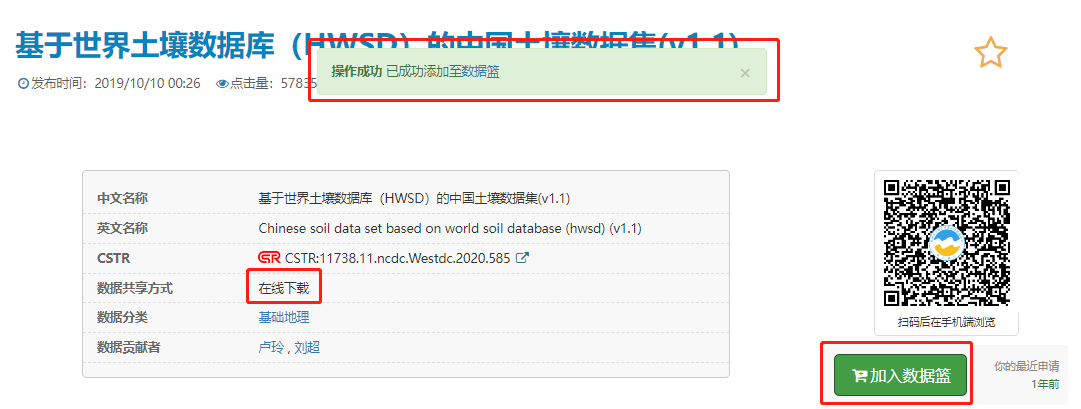
On the metadata details page, you can view the data's sharing method. To download, click “Add to Data Basket” to add the data to your basket for later batch processing.
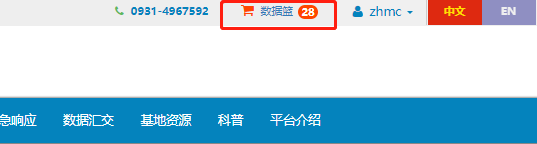
The data basket is located in the upper-right corner of the page, with the number next to it indicating the number of data entries awaiting processing in the basket.

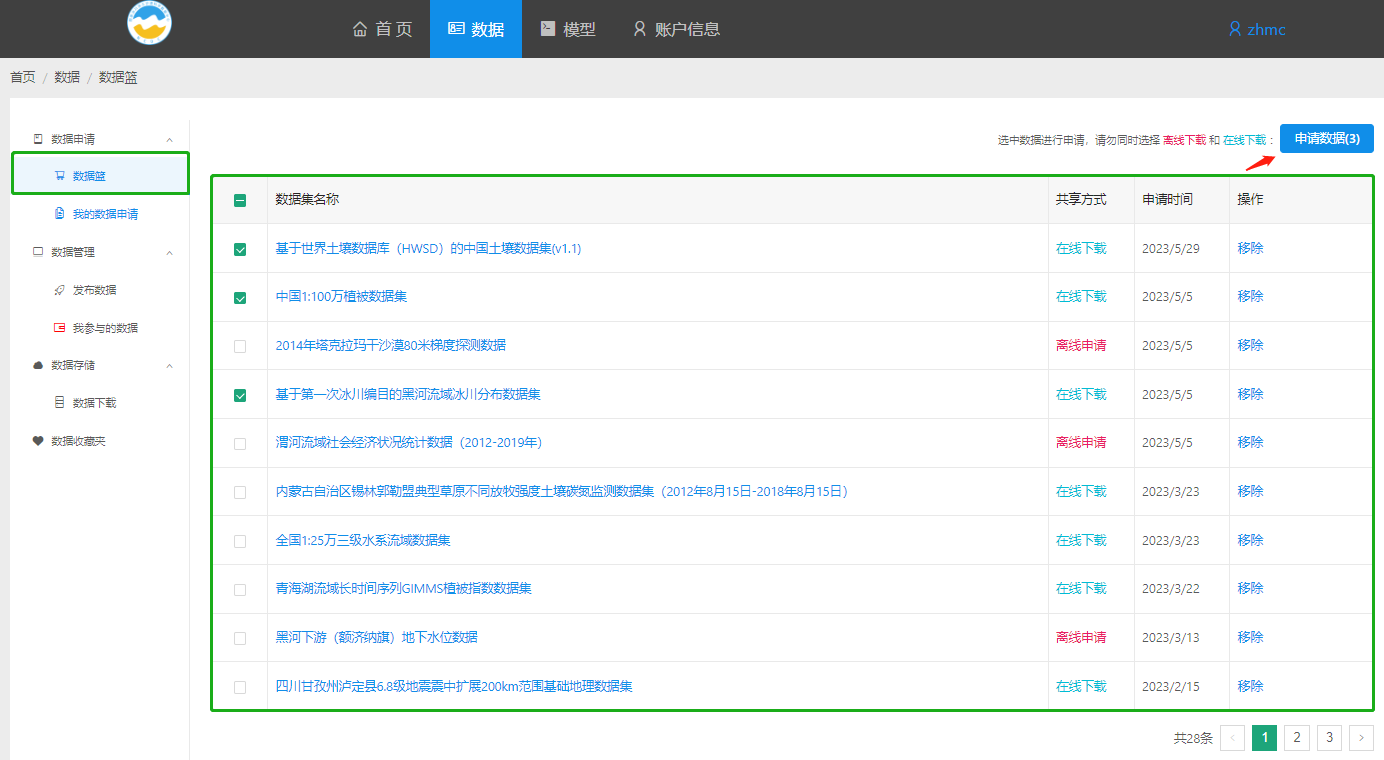
Click the “Data Basket” link to access the “Data Basket” page in the User Center, where you can view the list of data awaiting application. Select the data you wish to apply for.
Then click the “Request Data” button in the upper-right corner. Note that when selecting multiple items, you can only request data from one shared method at a time.

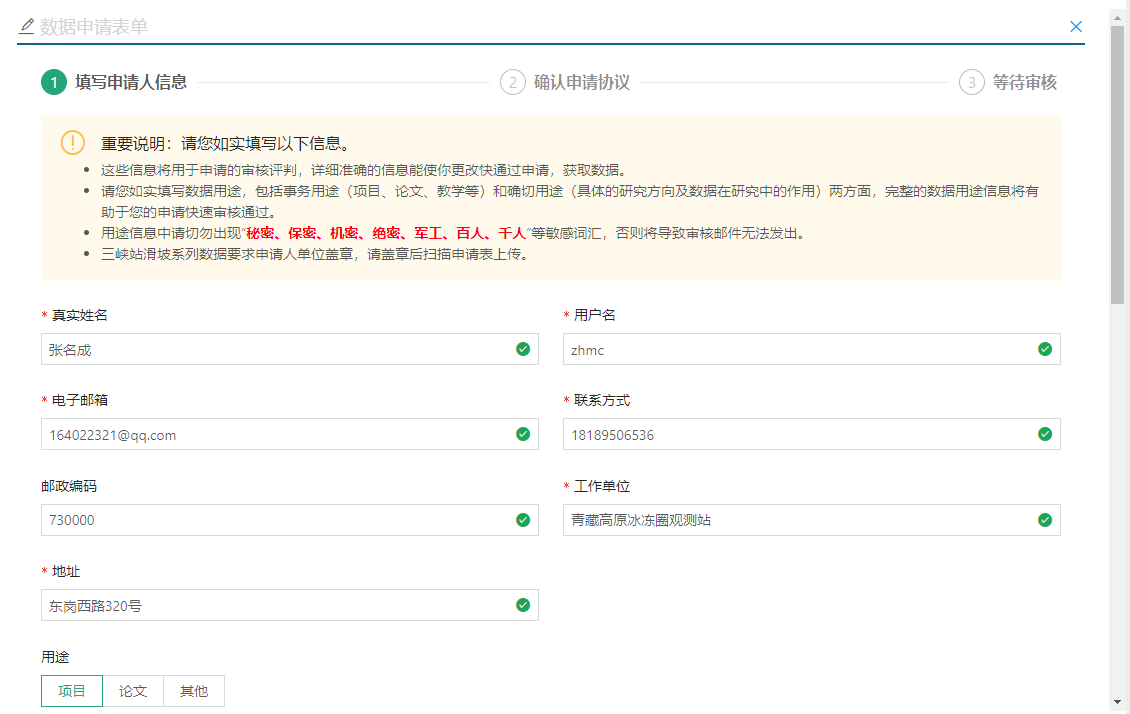
Fill in the applicant's information and the reason for the application. The purpose may be one of the following: project, thesis, or other.
Please ensure that all information provided is accurate, valid, and complete. Failure to meet these requirements may result in the rejection of your data request.
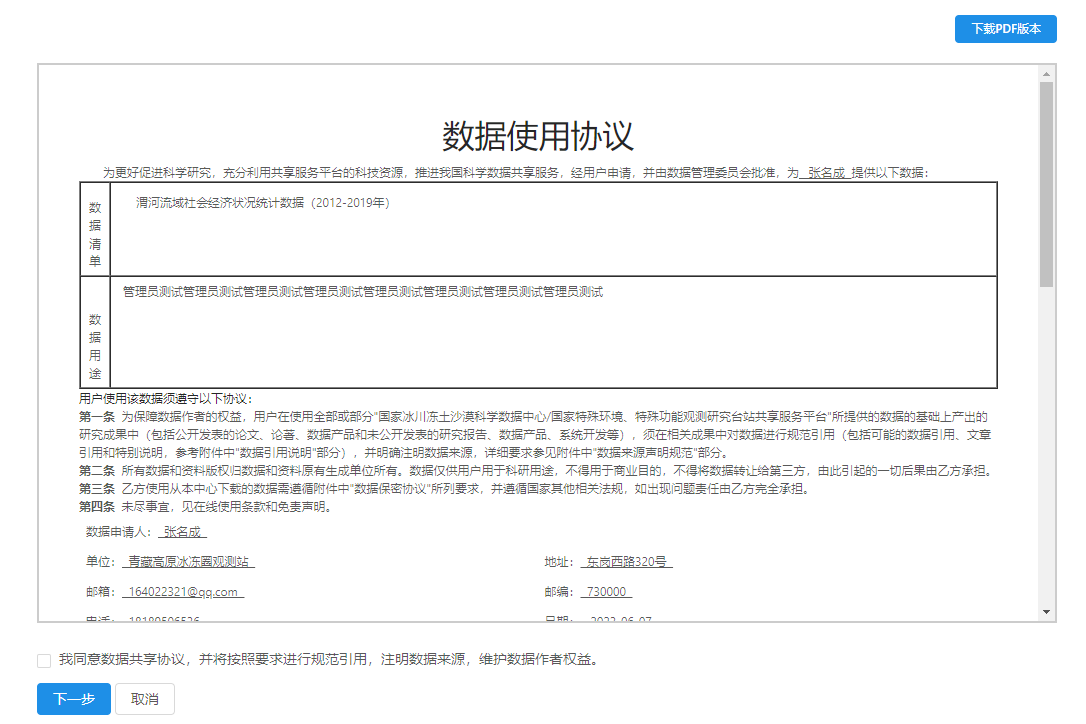
Carefully read the agreement contents, which include the Data Usage Agreement, Data Confidentiality Agreement, Data Source Declaration Specifications, and Data Citation Guidelines. After selecting the “Agree to Share Agreement” checkbox at the bottom, you may proceed to the “Next Step.”
You may also click “Download PDF Version” to view or archive the agreement content.

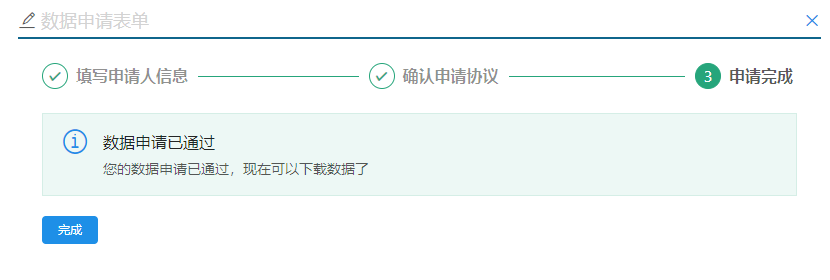
If the data sharing method is set to “Online Sharing,” it will be approved without review. You can download the data immediately.
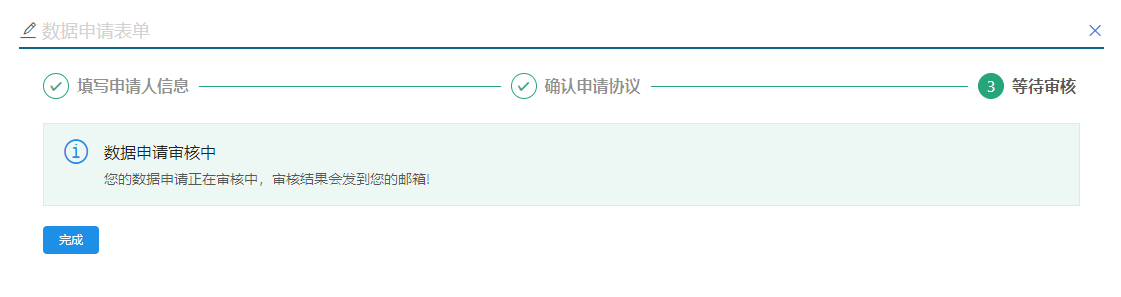
If the data sharing method is “Offline Application,” you will need to wait for secondary review by the platform administrator and data administrator, which may take several days. The review result will be notified to you via email. If the review is successful, you may proceed to the data download stage; if the review is unsuccessful, please supplement the information and reapply.
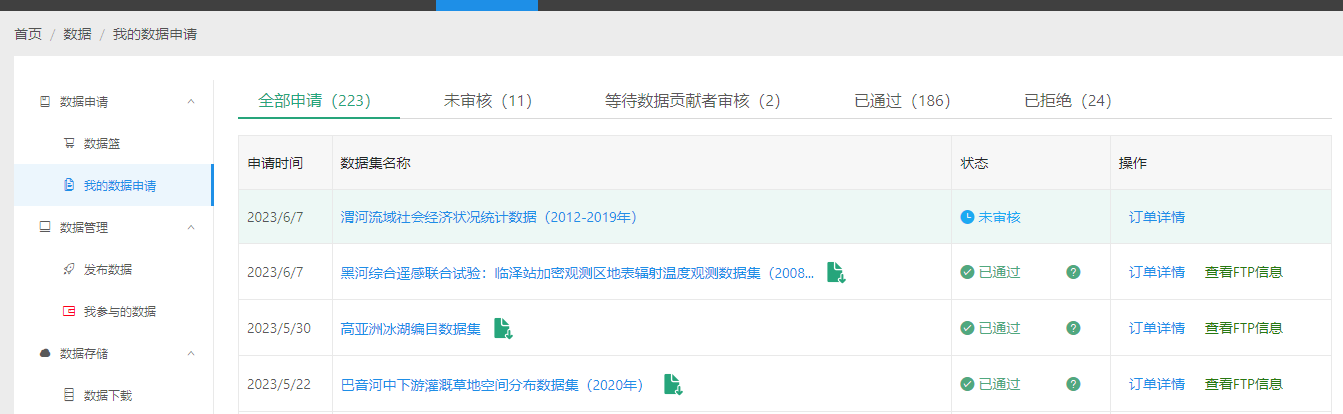
Click the “My Data Requests” menu item on the left to view the status of all request orders, or filter by order status.
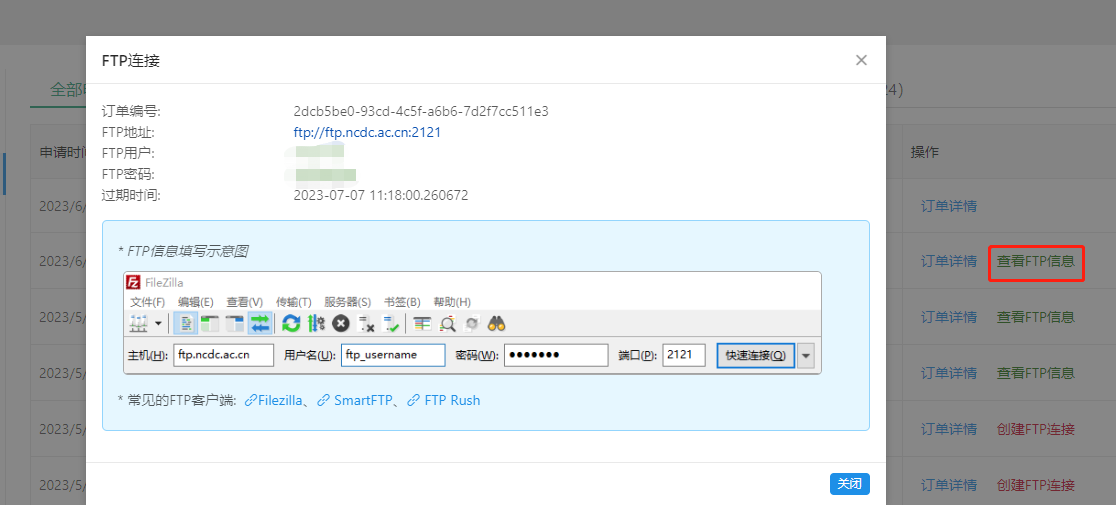
For data that has already been processed, you can view the FTP download information for the order and use an FTP client to download the data. See the FTP download instructions.

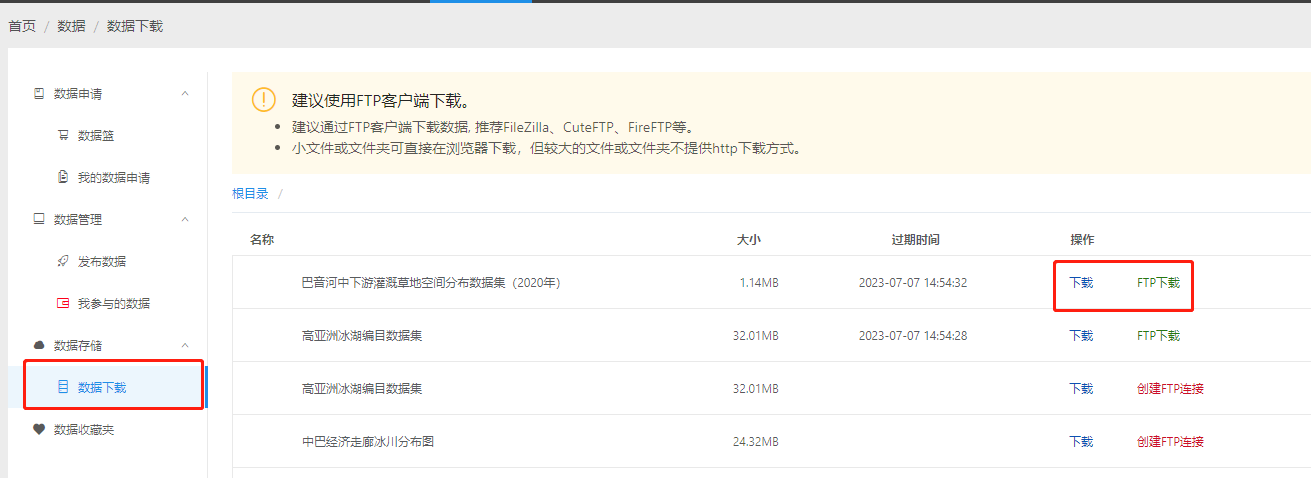
Click the “Data Download” menu item on the left to browse the datasets I have successfully applied for in file format.
For smaller datasets or files (folders), you can either download them as a single package or select and download them individually.
Larger datasets are not available for direct download. Please review the FTP information and use an FTP client to download them. See the FTP download instructions.

The data center provides storage services for journal data. If you need to submit data when publishing a paper, you may submit it to this center for storage.
User Center HTTP download; small files can be downloaded directly as a package.
If you do not have an FTP client installed, please download the latest version of an FTP client, such as FileZilla, FTPRush, WinSCP, etc.
We recommend using FileZilla. FileZilla download link: https://filezilla-project.org/download.php?type=client
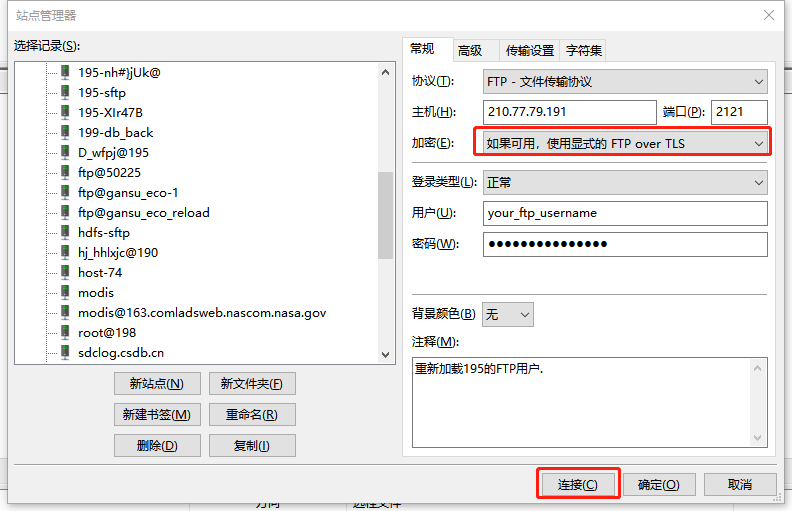
For security reasons, this FTP site employs “explicit FTP over TLS” encryption. Some clients (such as FileZilla) handle this automatically, while others (such as FtpRush or WinSCP) require manual selection of the encryption method.
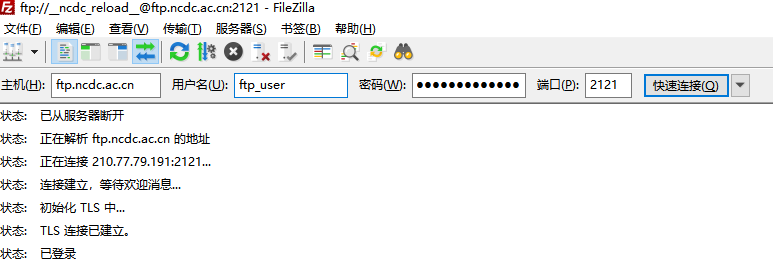
Enter your FTP information in the top toolbar and click the “Quick Connect” button:

Alternatively, establish a connection in Site Manager by clicking the Connect button. Ensure the Encryption option is set to “Use FTP over TLS if available”:

Enter your FTP credentials in Ftprush, paying attention to the encryption method selection.

Emergency data is provided for disaster relief and other emergency purposes during disasters. Please do not use it for any other purposes.
Emergency data can be downloaded without logging in for 90 days after release. After 90 days, a login is required for download.
Certain emergency data will no longer be available for download 90 days after its release.
The process has ended with an exit code of 0.